
Upgrading a legacy ESP32 project to a new ESP-IDF with AI
This tutorial shows how to use AI to fix build errors caused by switching from ESP-IDF 4.x to 5.x. We will import an existing open-source ESP32 MQTT demo, try building it with ESP-IDF 5.5.2, and will then use AI-powered techniques to avoid fixing trivial errors by hand.
Before you begin, install VisualGDB 6.1R3 or later.
- Start Visual Studio and open the ESP-IDF project wizard:
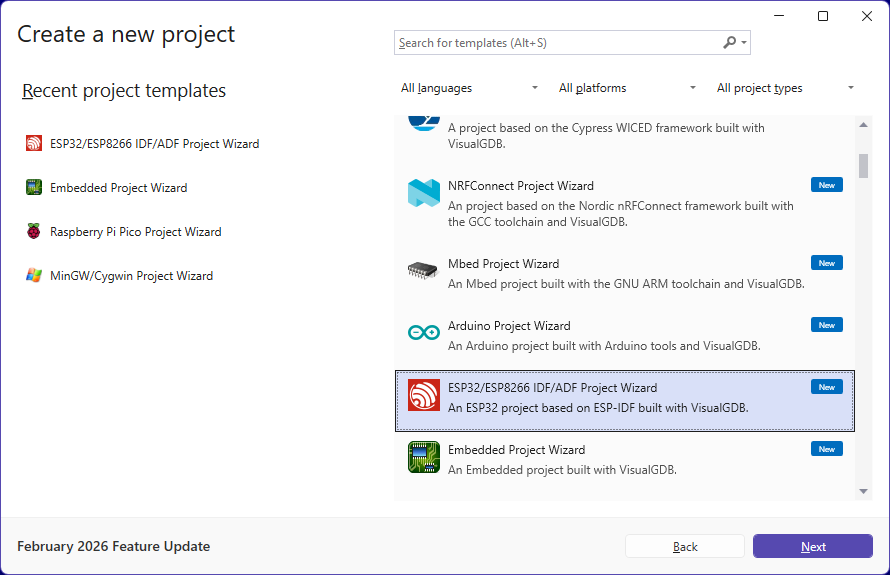
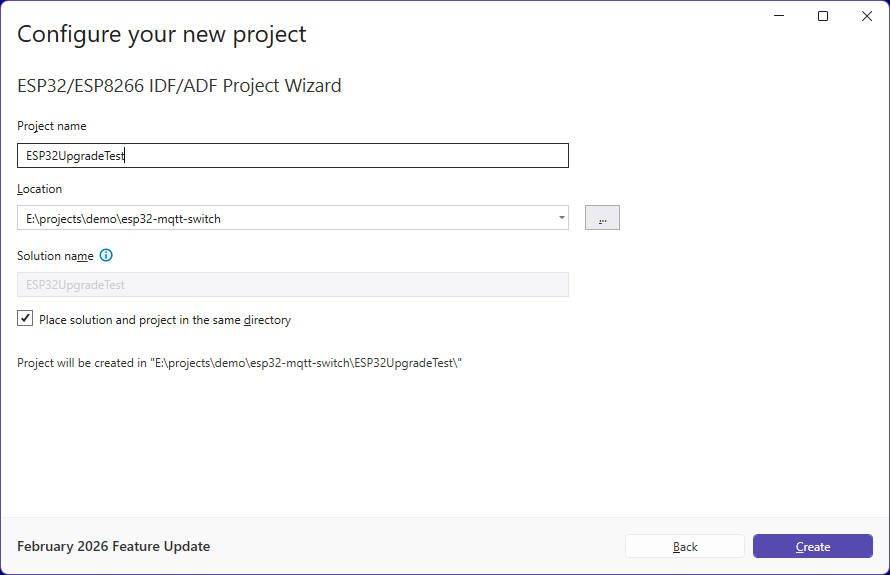
- Enter the project name to create. You can keep an arbitrary folder here, as it will be updated later:
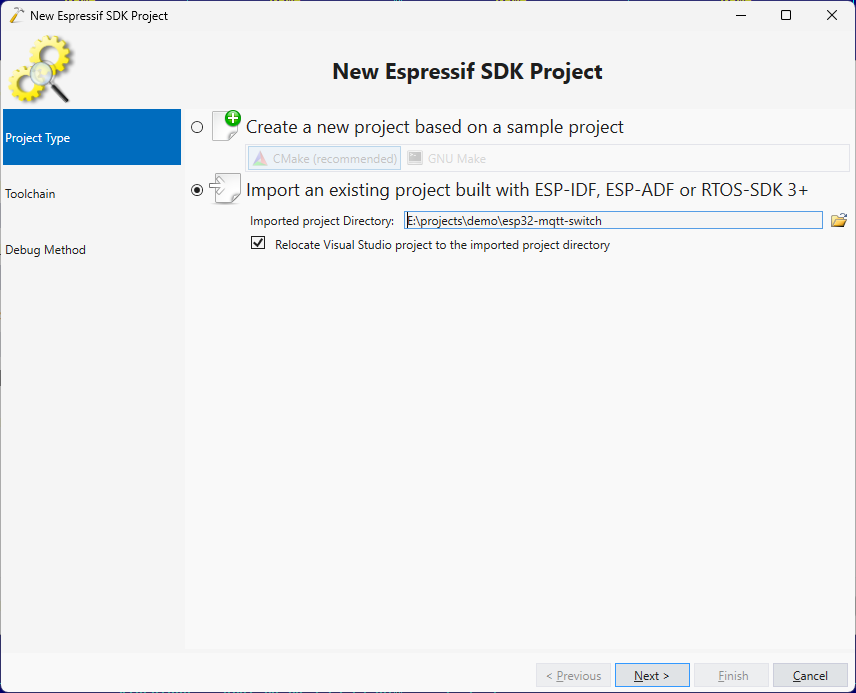
- Select “Import an existing project” and point to the location where you cloned the project. Make sure the “Relocate Visual Studio Project” checkbox is checked:
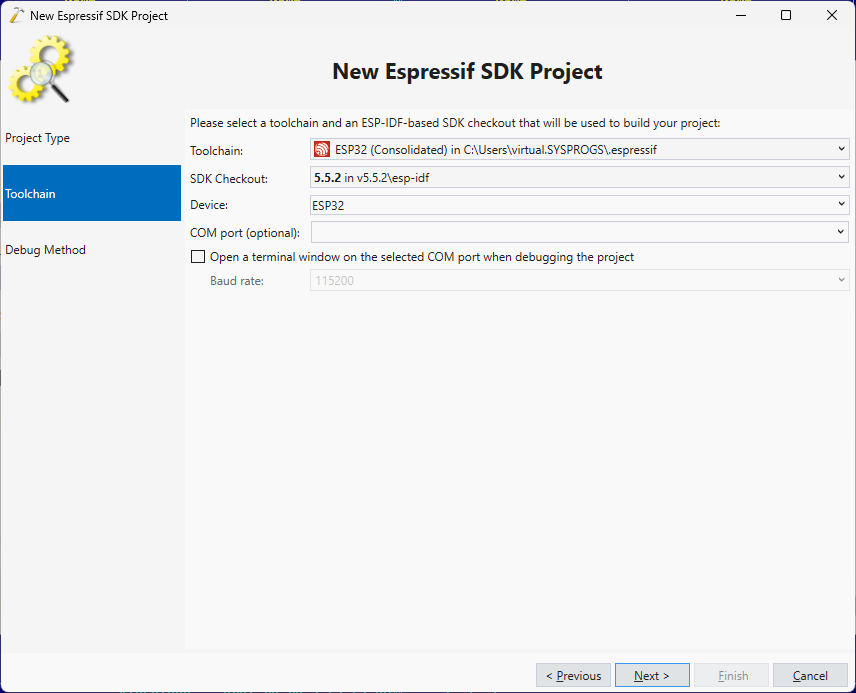
- Choose the latest ESP-IDF toolchain and the SDK:
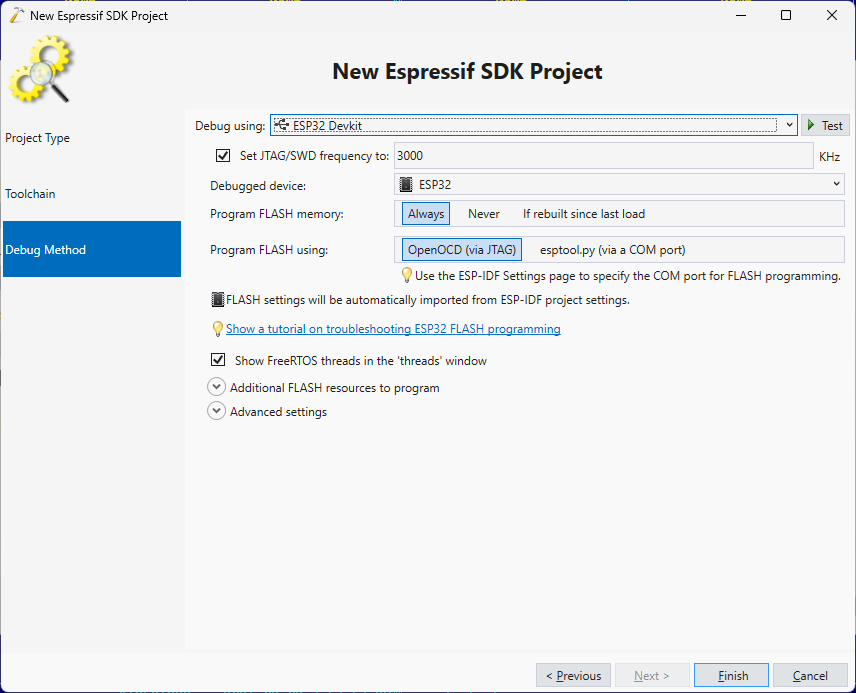
- Finally, you can enter the debug settings matching your board, or just proceed with the default ones:
- The original project was built using ESP-IDF 4.1, so building it with 5.5.2 results in over 50 errors:
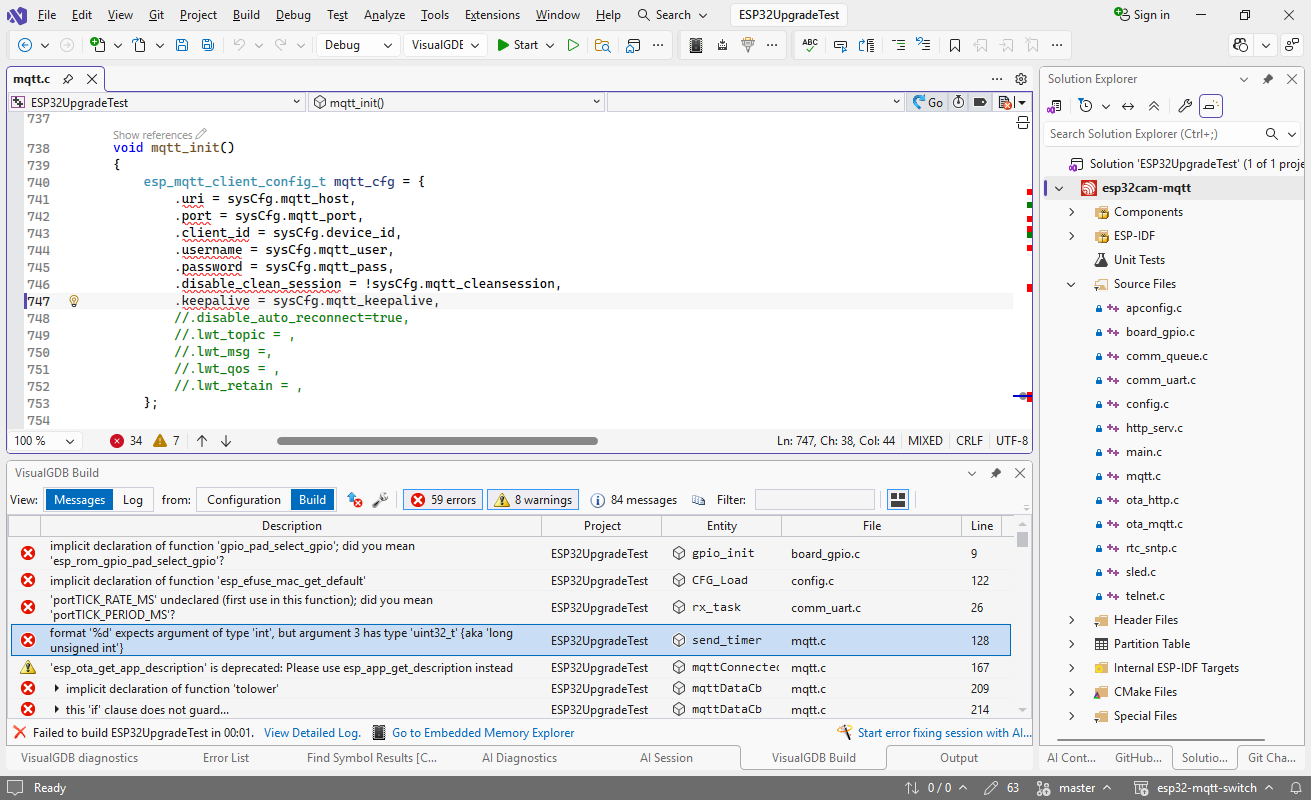 If you look closely, many of them have similar causes. E.g. the MQTT configuration struct now uses nested structs (see the migration guide) and using signed format specifier (%d) for uint32_t now causes a compiler error.
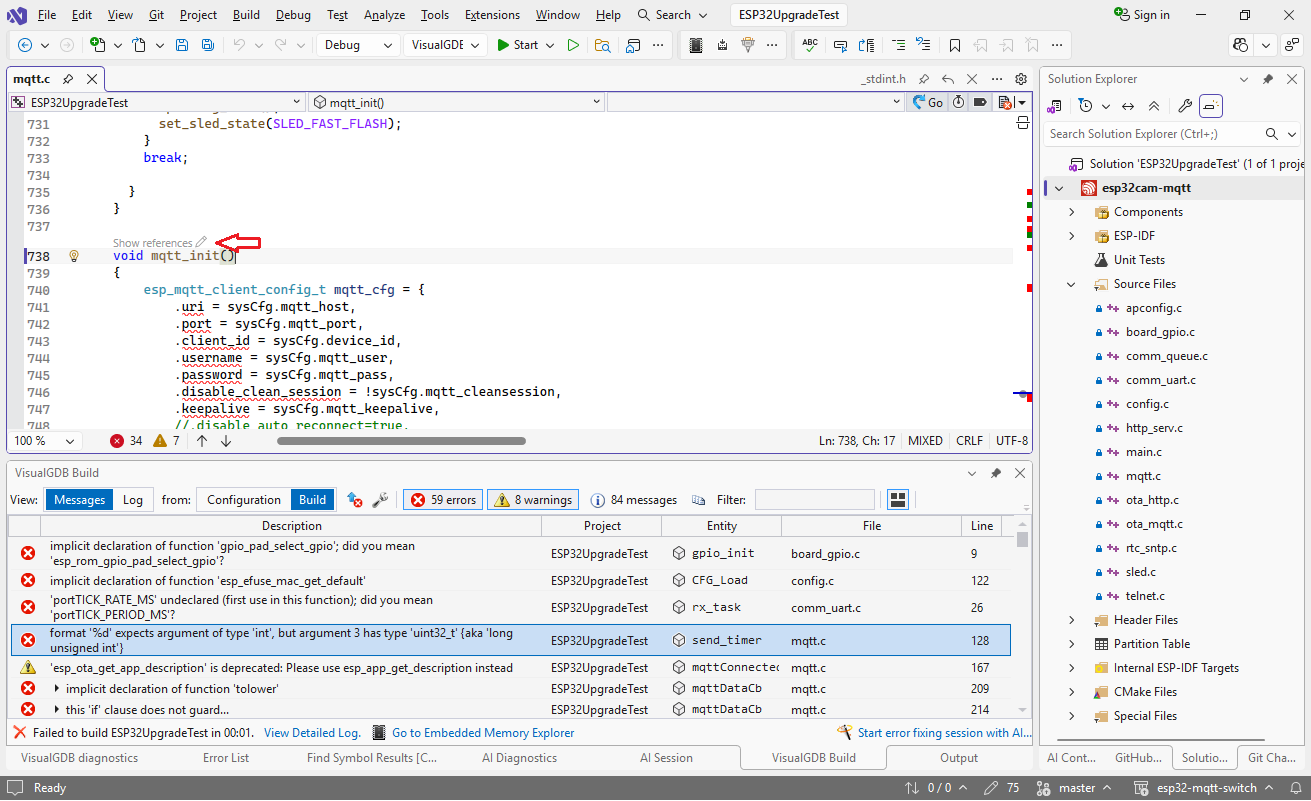
 - Most of the errors are rather trivial to fix, as soon as you look at the correct definitions. However, since the definitions are spread between multiple header files, many classical AI tools will take too long to produce meaningful results. We will now use VisualGDB’s symbol-level edits to quickly fix the errors without spending too many tokens. Click on the edit button above mqtt_init():
- VisualGDB will create a new editing session, that includes mqtt_init() and all types referenced by it (e.g. esp_mqtt_client_config_t):
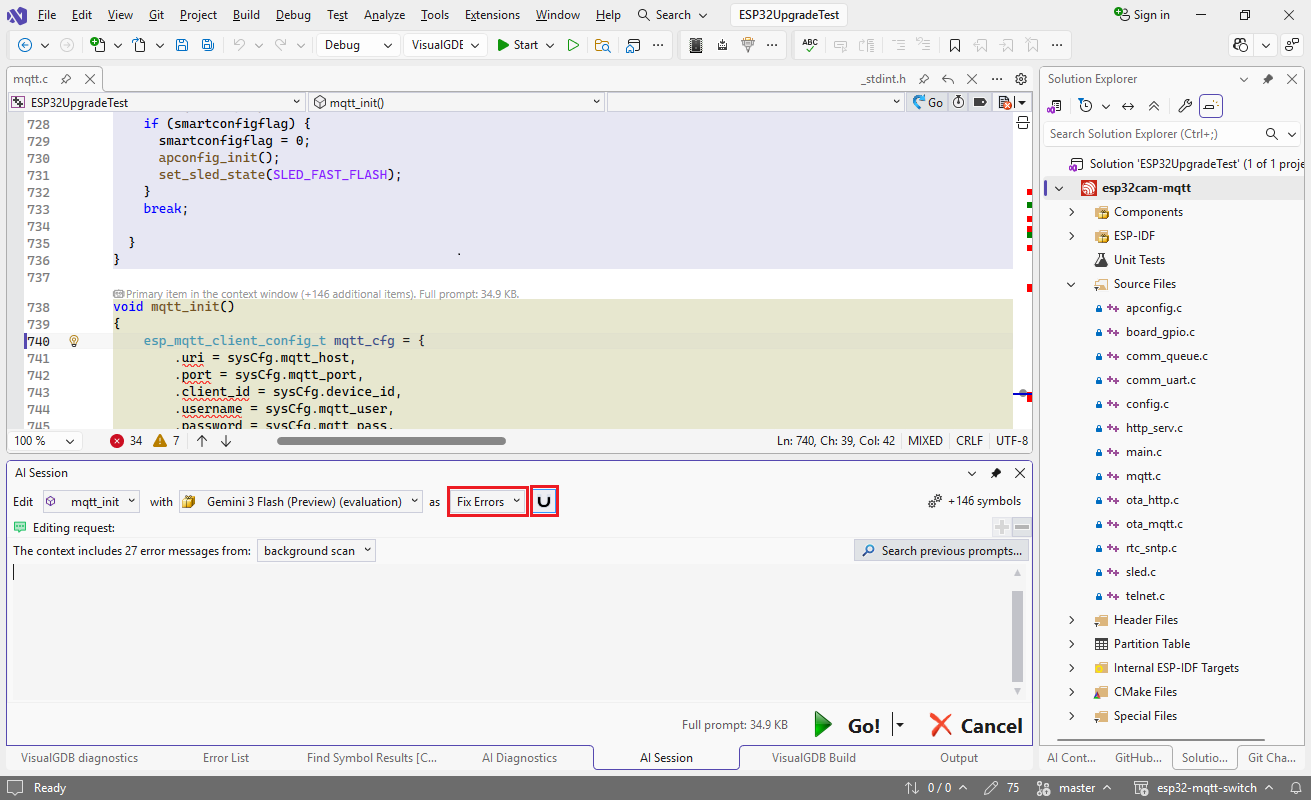 Switch the mode to “Fix Errors” and make sure the references mode (magnet icon) is enabled, and press Go to start the edit.
 - Most of the models will handle this rather fast, mapping the old definitions to the new definitions:
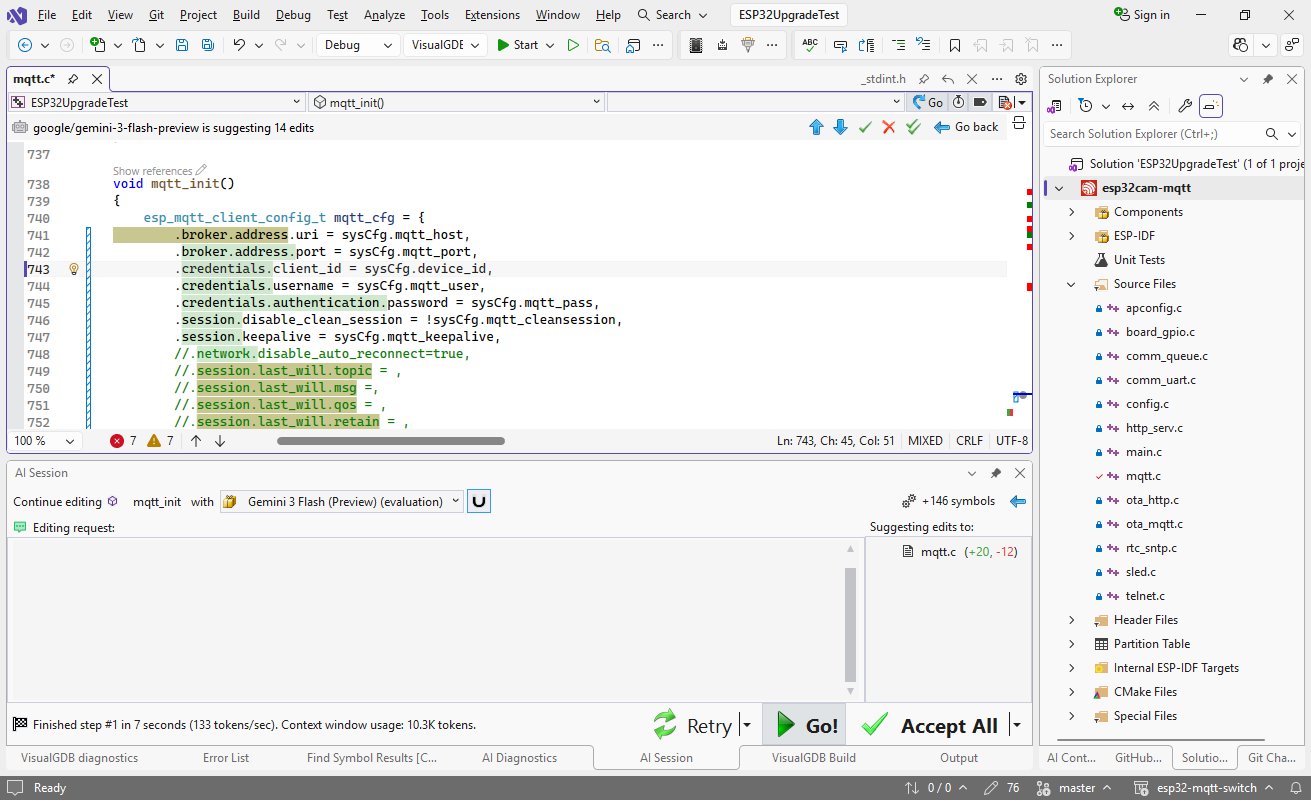 Here’s a quick overview of how different models handled the task (averaged over 3 re-runs):
Model Average time Remarks Claude Sonnet 4.6 17 sec Cleanest Gemini 3 Flash 11 sec Good Gemini 2.5 Flash 4 sec 75% success rate (broken syntax) GPT-OSS-120B (Cerebras) 4 sec Tried initializing all fields There is always a trade-off between using large vs. small models. Claude models typically produce good results, but are slow. GPT-OSS-120B running on the Cerebras platform is very fast, but tends to reformat code or remove comments. You can mitigate it by stepping back and giving instructions like “keep existing format”, or just stick to larger models.
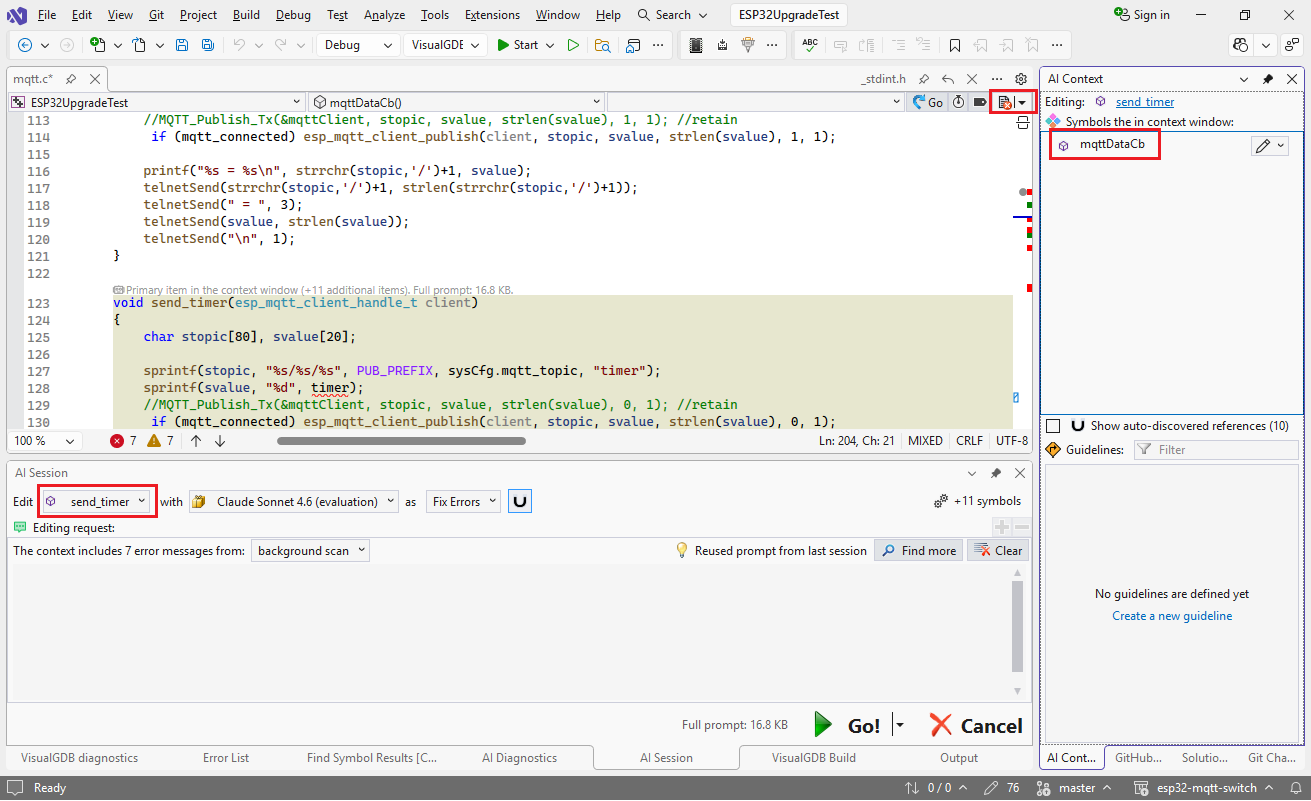
- The remaining errors in the file are split between two symbols (send_timer() and mqttDataCb()). Instead of manually adding them to the context window, finish the session, and click the button in the top right corner of the editor:
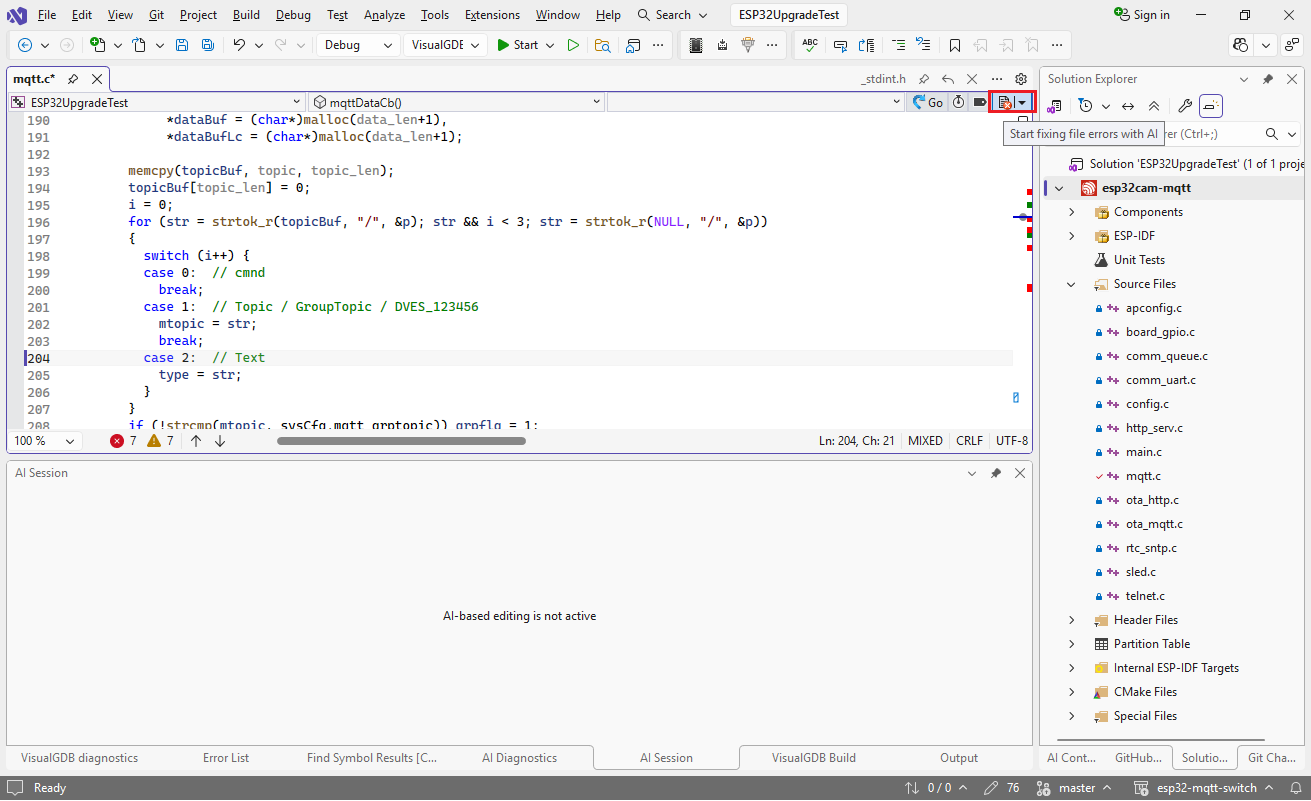
- This will start another session featuring all the symbols with errors:
- This is a tricky one, since on most systems using %u for uint32_t will work just fine, so only Claude managed to get it right, taking about 60 seconds:
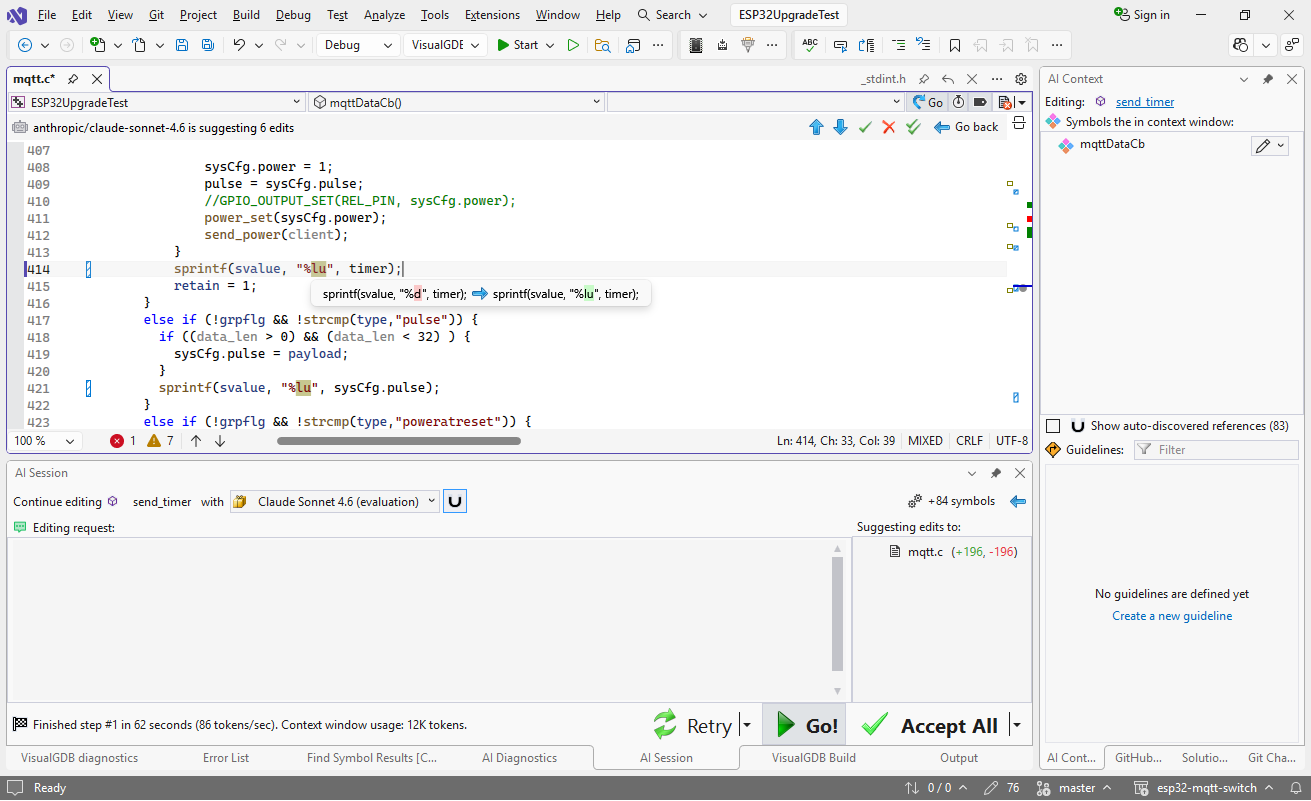 Other models either skipped several instances, or produced outright broken code. That said, giving them more precise instructions worked just fine:
Use %lu for uint32_t and fix other specifiers
Gemini Flash 3 handled it in 28 seconds, and the older 2.5 did it in just 15 seconds.
- VisualGDB highlights the chunks of added/deleted/replaced text on the scroll bar, and also provides buttons for quickly jumping between the edits:
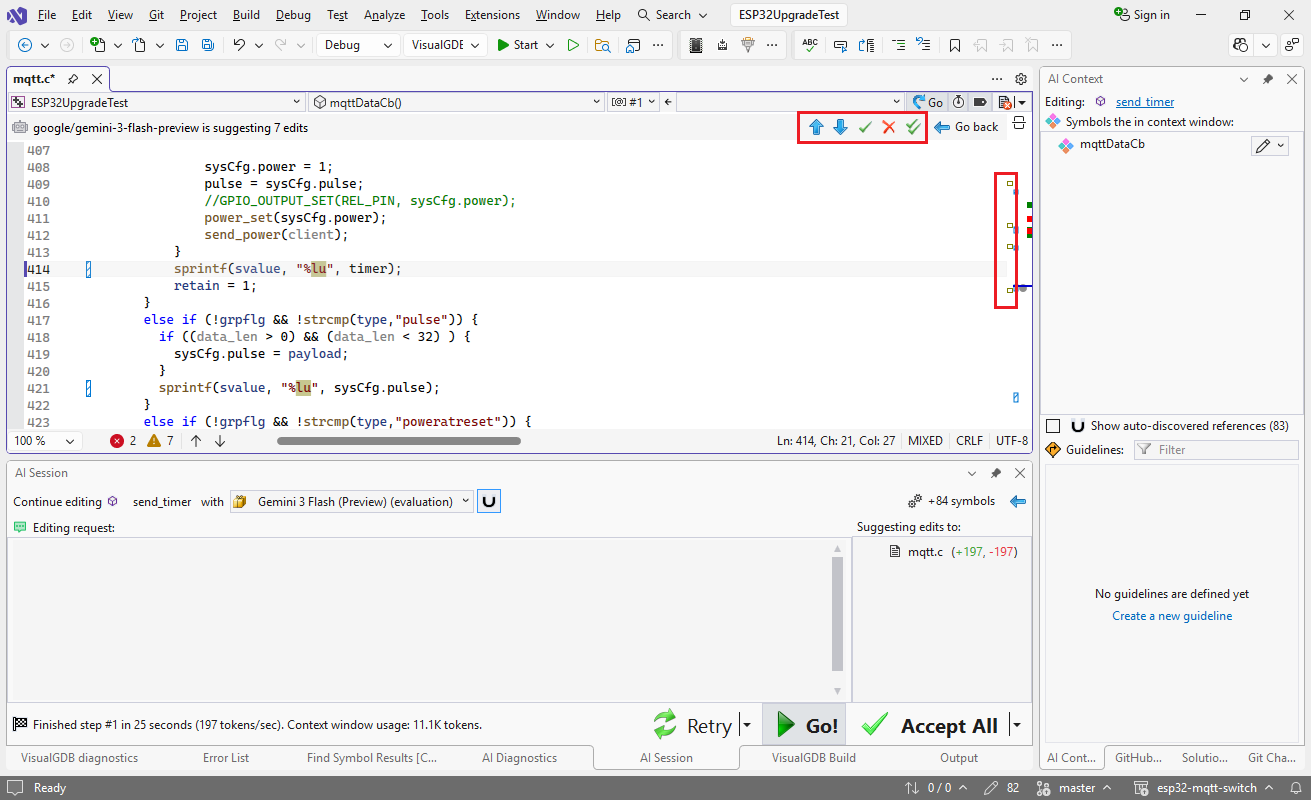 Smaller models that provide near-instant replies tend to reformat/rewrite the code that was not a part of the problem. You can reject these edits efficiently by selecting the edited code and pressing the “reject” button (or using the context menu).
 - None of the models figured out that the “array subscript is of type ‘char'” should be fixed by casting tolower argument to uint8_t, so this was easier done by hand:
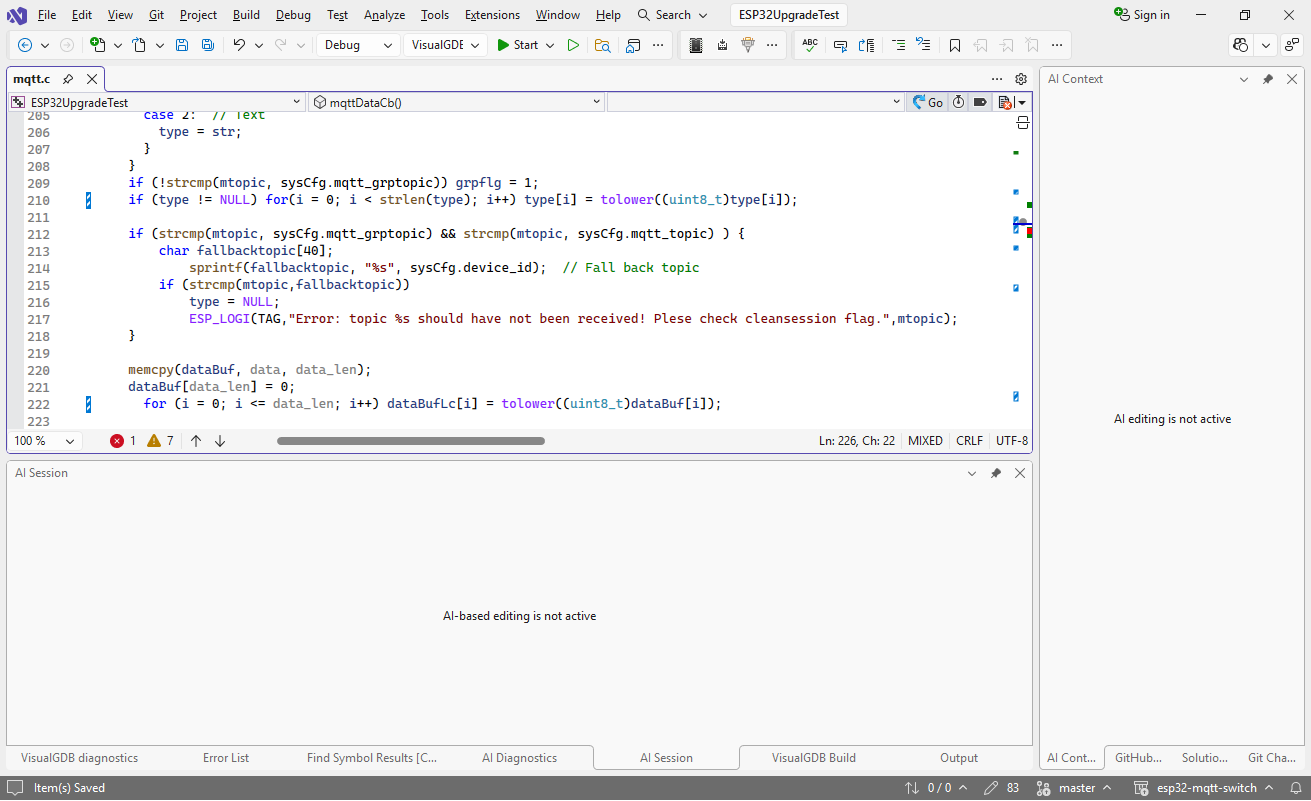
- If you build the project now, it will raise 22 errors in different source files:
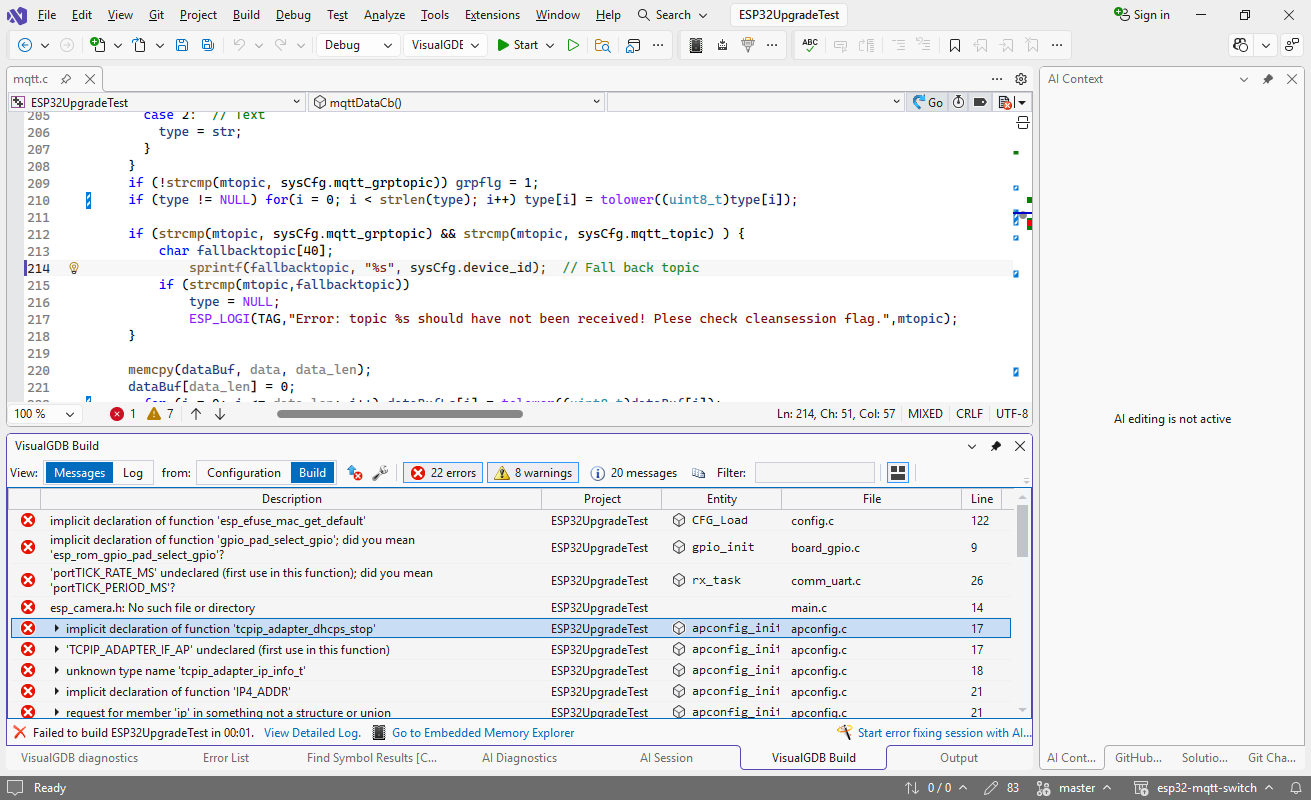
- You can fix groups of them by clicking the “Start error fixing session” button in the errors window. As most of the errors are in apconfig.c, let’s focus on fixing this file first:
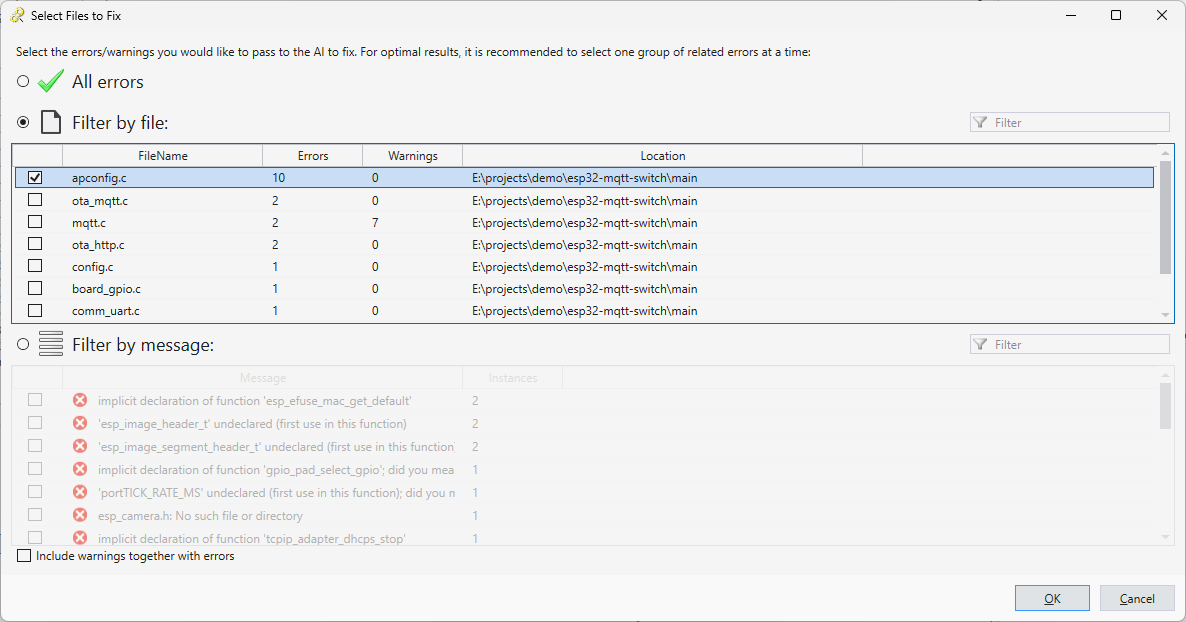
- The errors are caused by changes in network-related function names, most of which are declared in esp_netif.h (you can find it out via global search in Code Explorer). Let’s tell the AI to look into that file when fixing the errors:
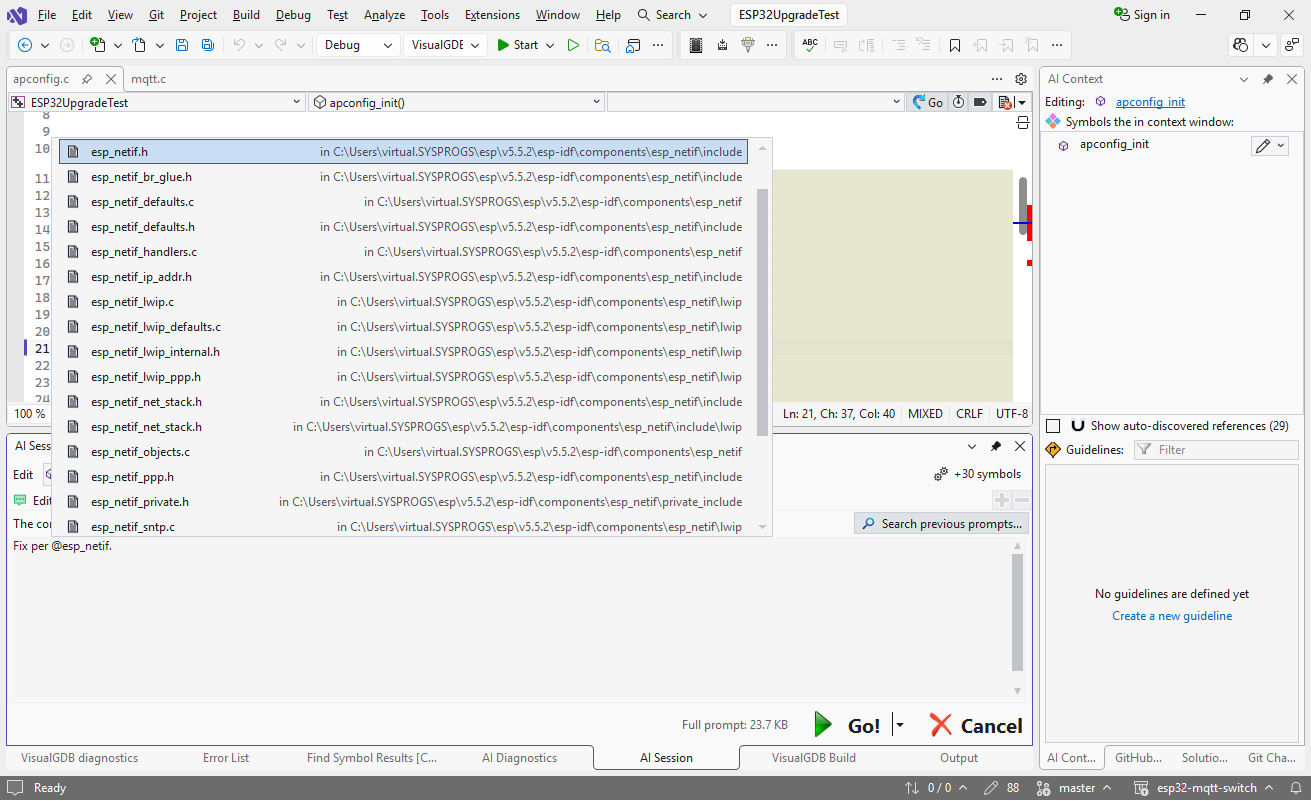
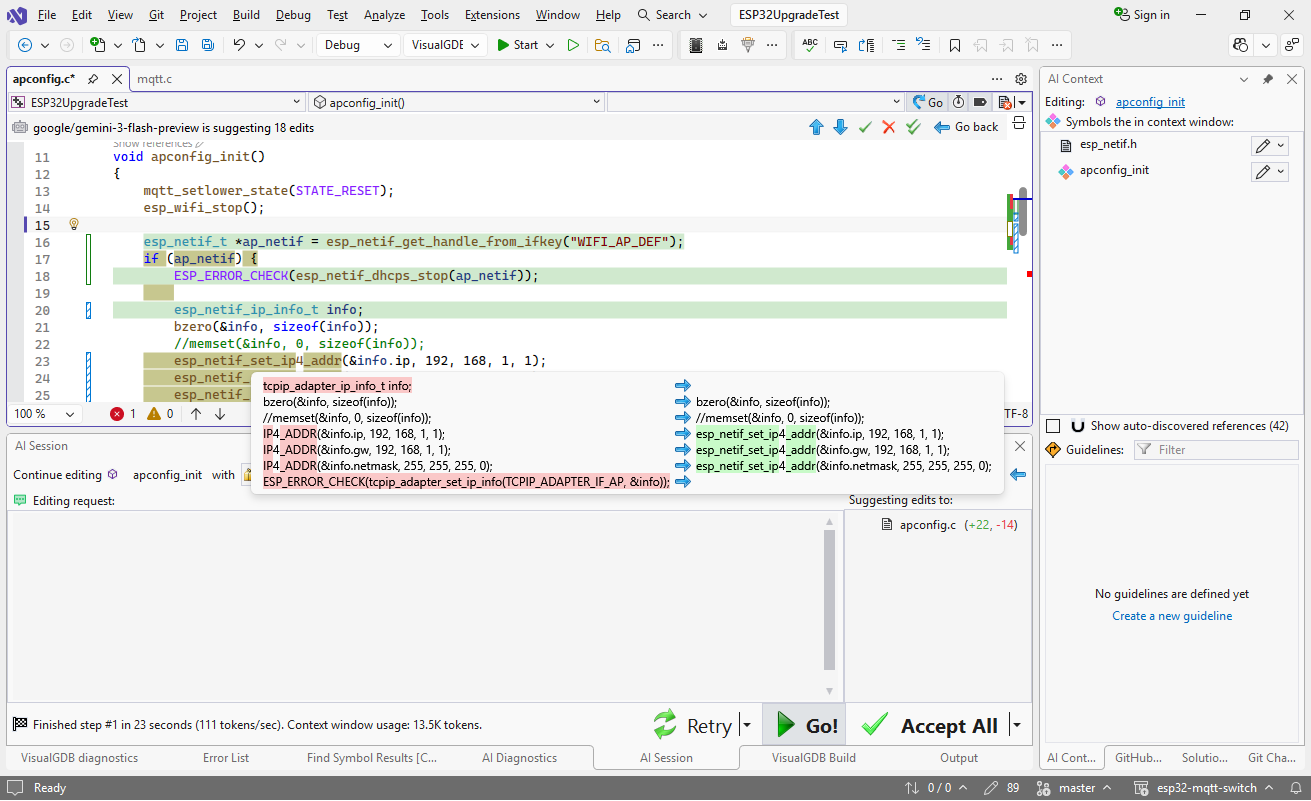
- Since the models now see the relevant declarations, rewriting the code to use them is fairly straight-forward:
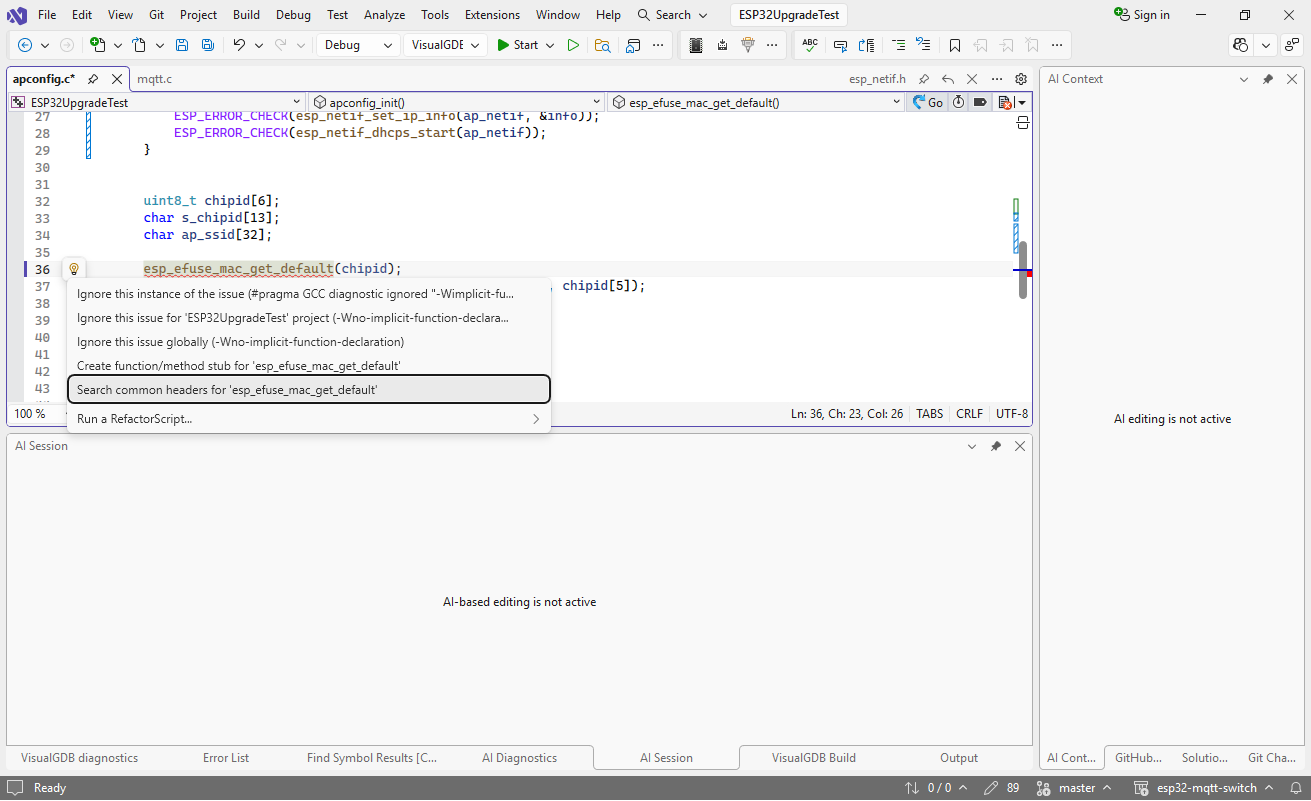
- This did not fix the esp_efuse_mac_get_default() error (since it’s declared in another header), but using the VisualGDB’s header search worked just fine:
- Most of the other errors involve trivial cast expressions, replacing portTICK_RATE_MS with portTICK_PERIOD_MS and referencing the camera component via the Smart Terminal:
idf.py add-dependency "espressif/esp32-camera"
idf.py reconfigure
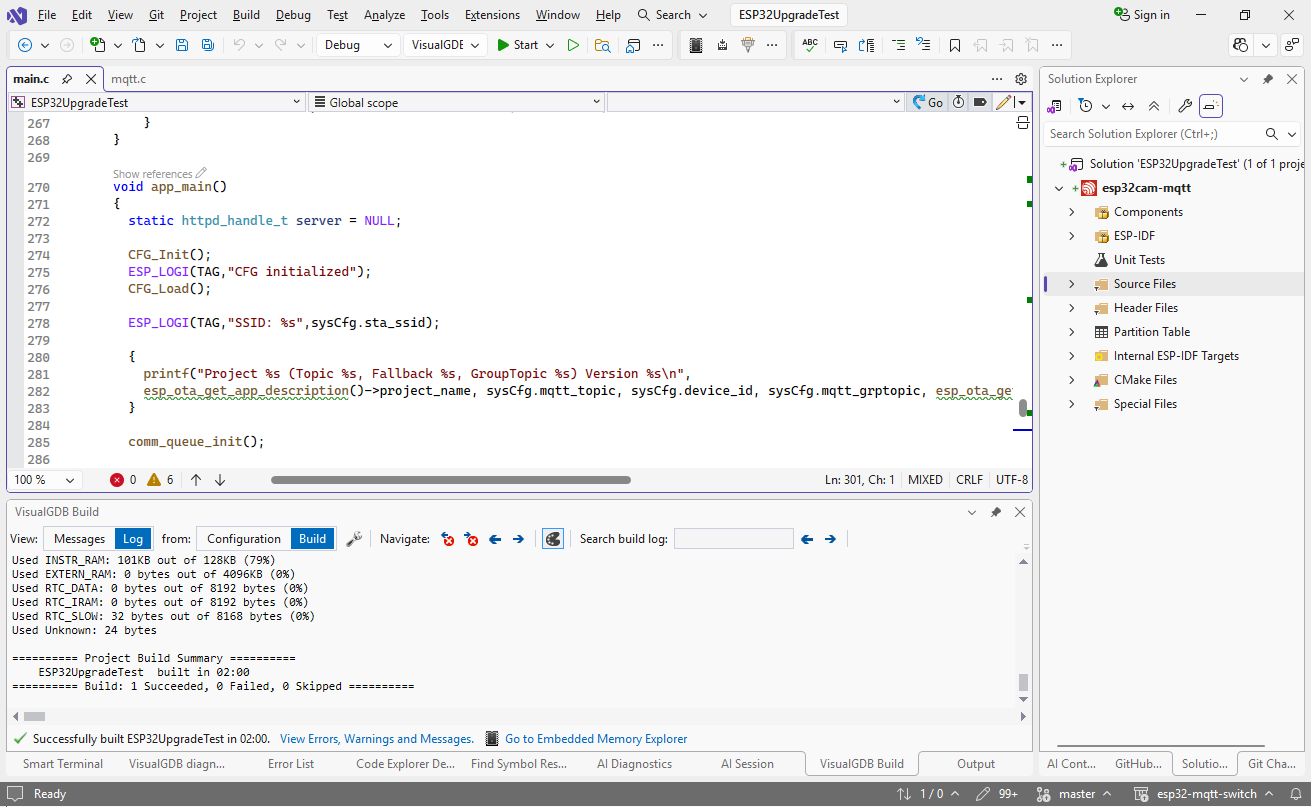
Having the remaining errors fixed, the project will build successfully, producing a valid executable:
As of early 2026, the AI models are still very far from handling every development task. However, they got rather good at fixing repeating errors with minimal prompts, and VisualGDB’s symbol-level editing allows them to produce good results quickly and efficiently.